
Payment Methods
How to pay via the KBANK app by entering the payment details yourself | |
How to pay via the SCB app by entering the details yourself | |
How to pay via the SCB app by scanning the barcode |
How to pay via the KBANK app by entering the payment details yourself
1. |
 |
Select the "Pay Bill" menu |
2. |
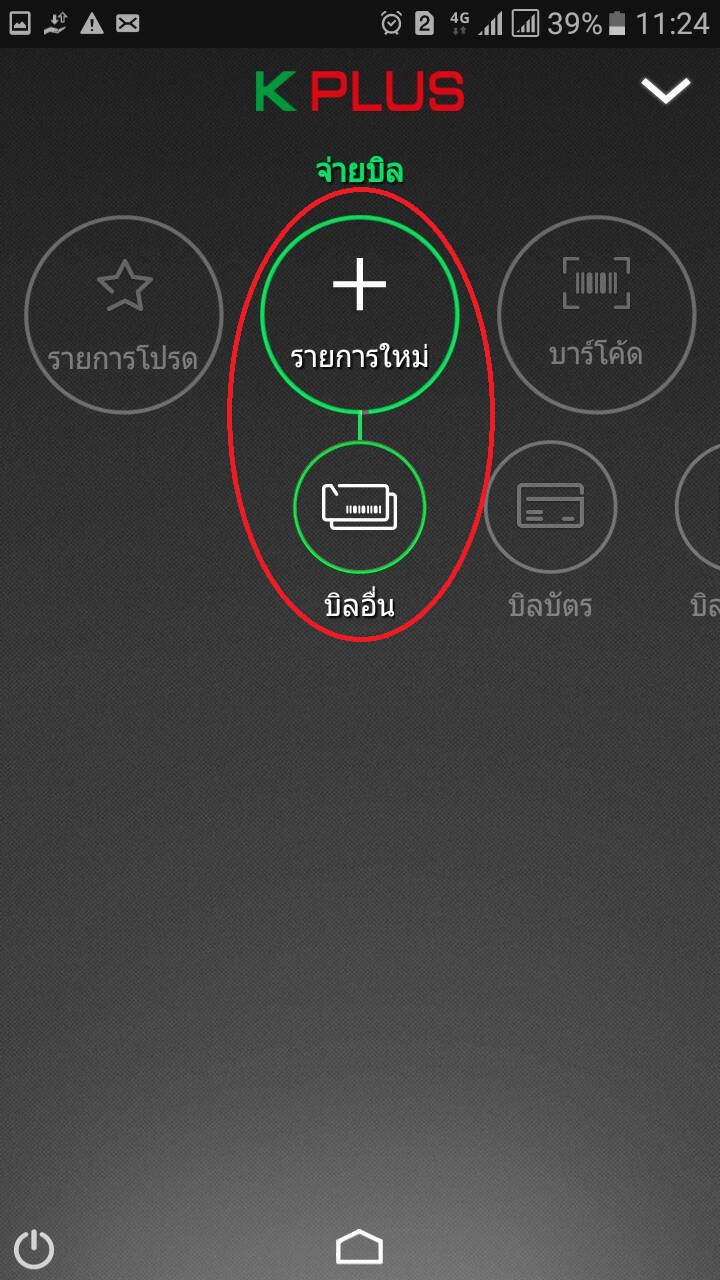 |
Select "New" --> "Other bills" |
3. |
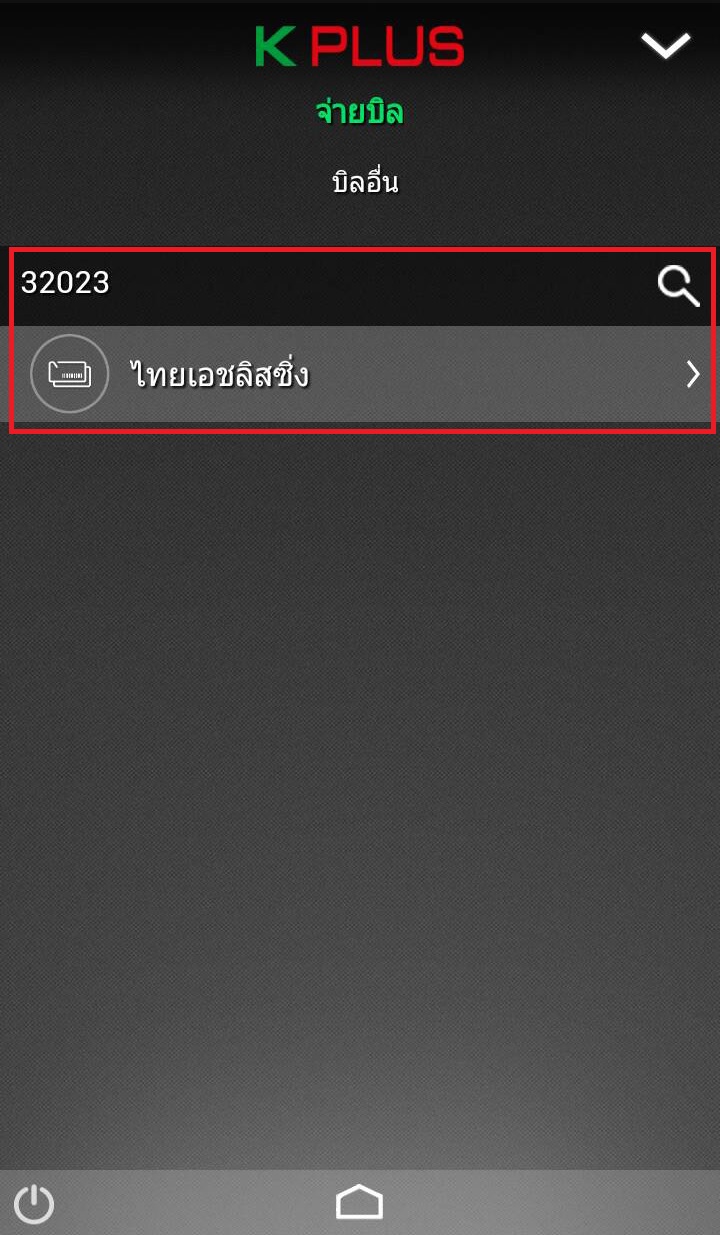 |
Search for the company account to pay using Comp Code = 32023 or account number = 077-107-4359, then select it when the company name "ThaiAce Leasing" appears |
4. |
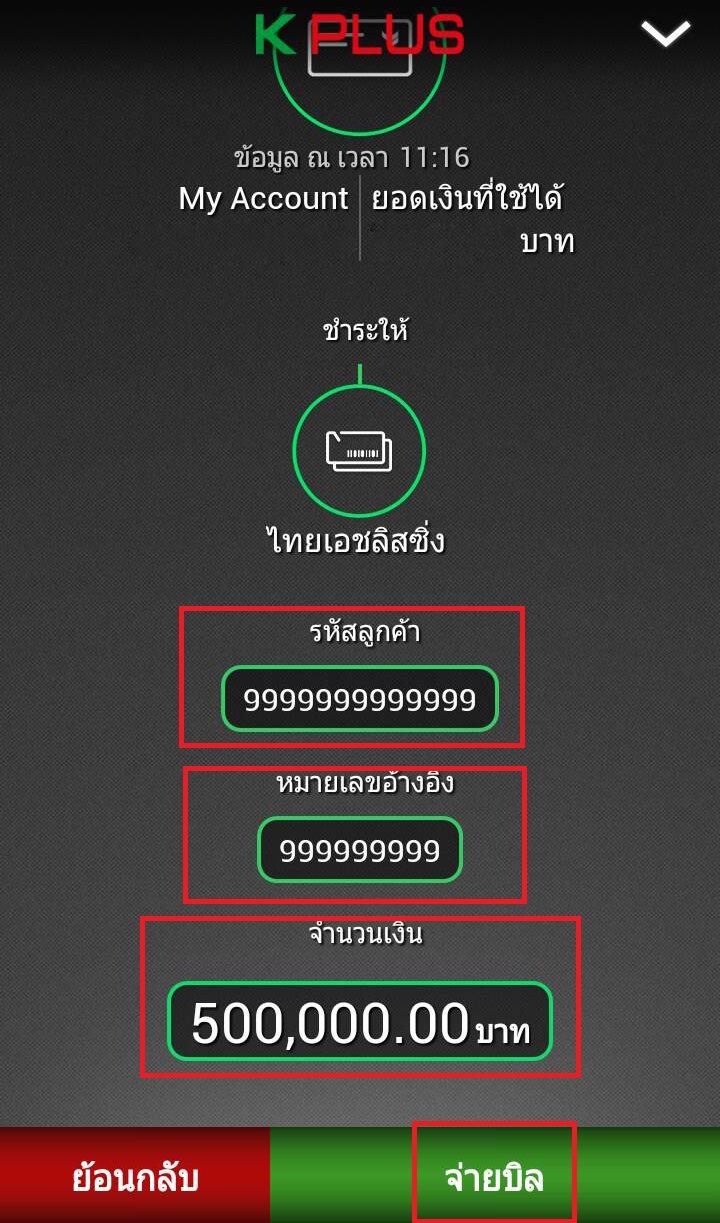 |
Enter the Customer code/Ref.1 and Reference number/Ref.2 shown on your payment slip, enter the amount, then press the "Pay Bill" button |
5. |
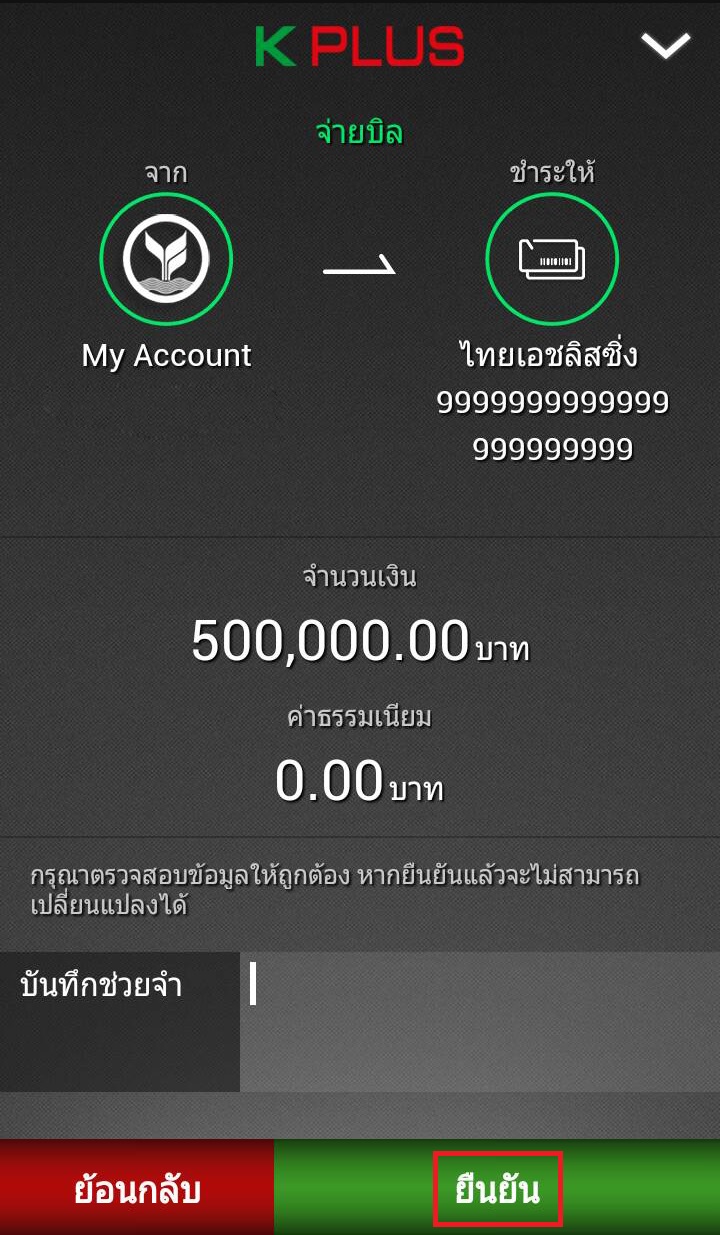 |
Check the details carefully before pressing the "Confirm" button to make the payment |
How to pay via the SCB app by entering the details yourself
1. |
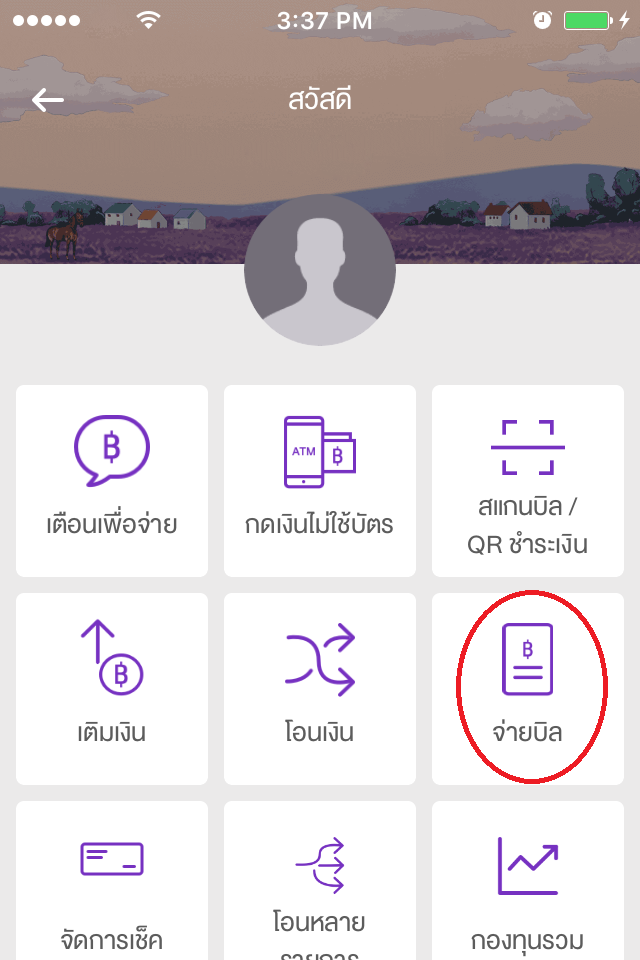 |
Select the "Pay Bill" menu |
2. |
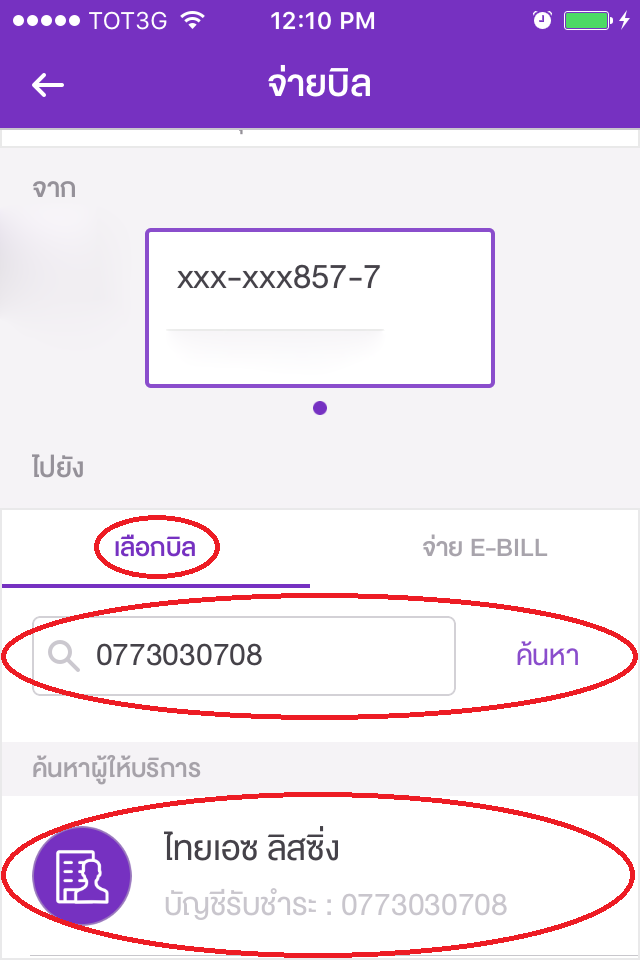 |
Select "Select bill", then search for the company account to pay by account number or company name. Account number = 077-303-0708; select it when the company name "ThaiAce Leasing" appears |
3. |
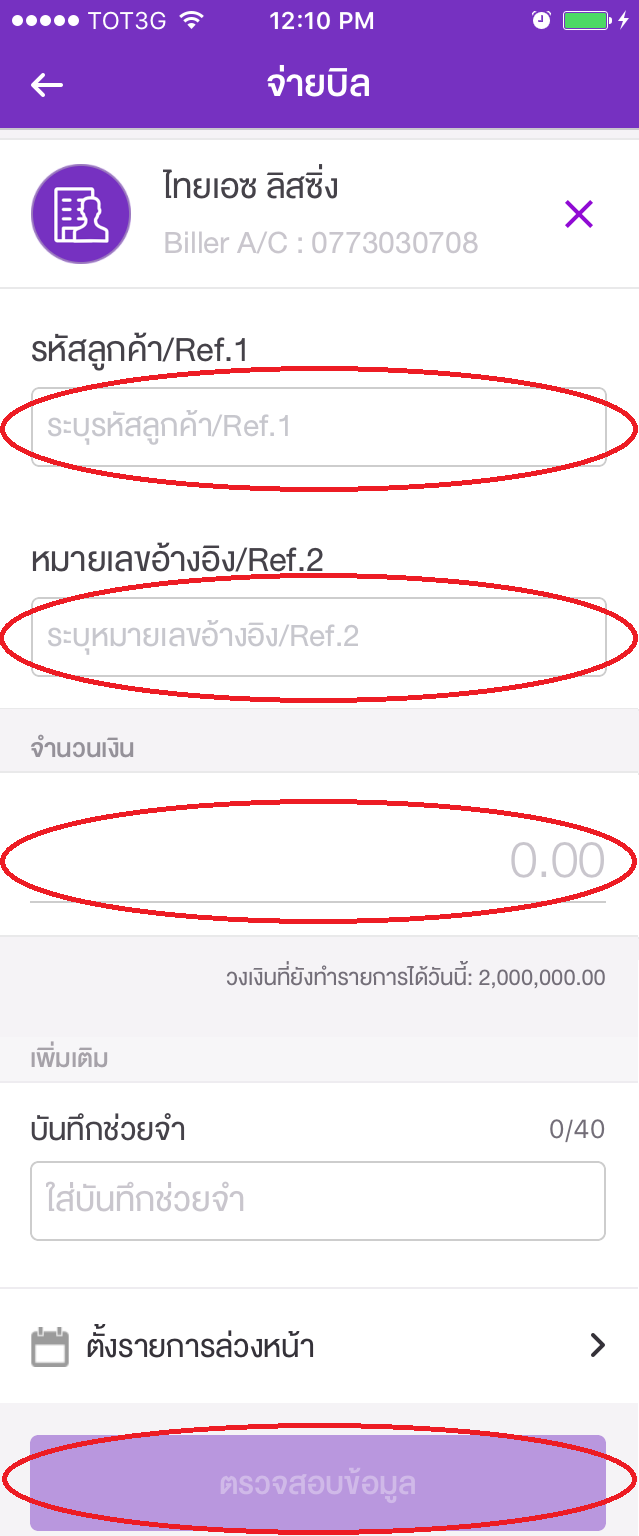 |
Enter the Customer code/Ref.1 and Reference number/Ref.2 shown on your payment slip, enter the amount, then press the "Review" button |
4. |
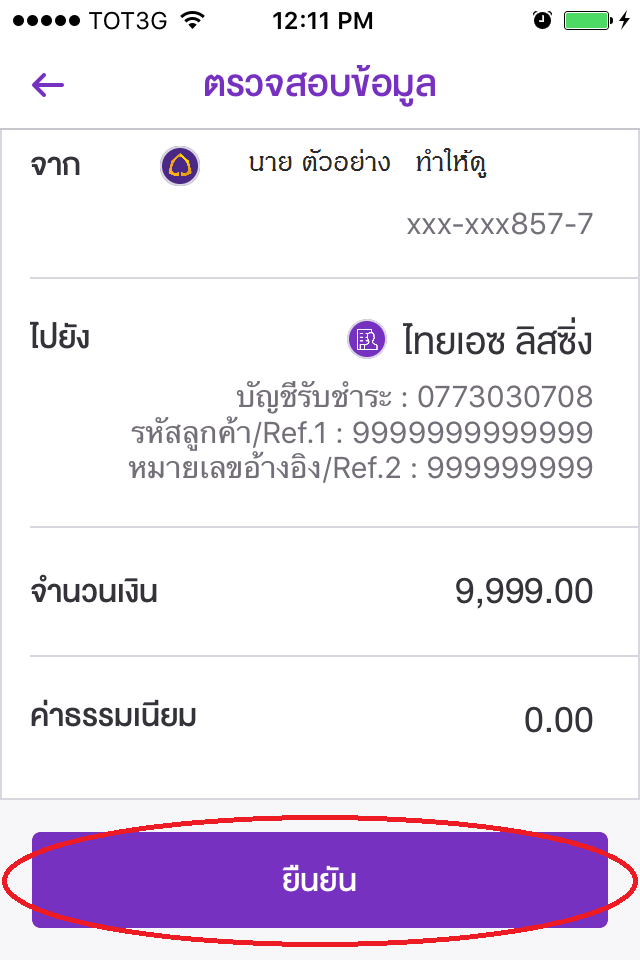 |
Check the details carefully before pressing the "Confirm" button to make the payment |
How to pay via the SCB app by scanning the barcode
1. |
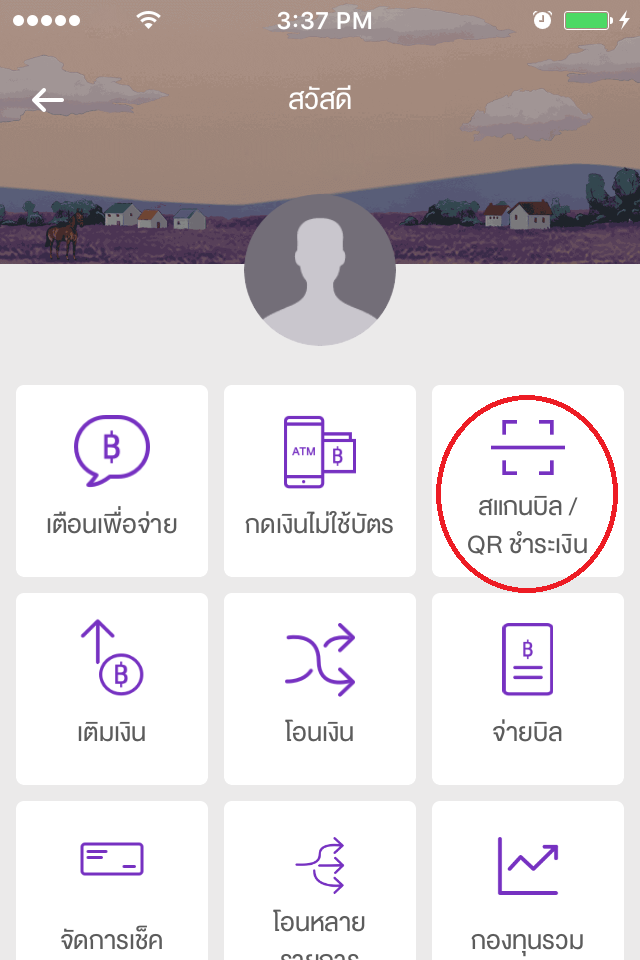 |
Select the "Scan bill / QR payment" menu |
2. |
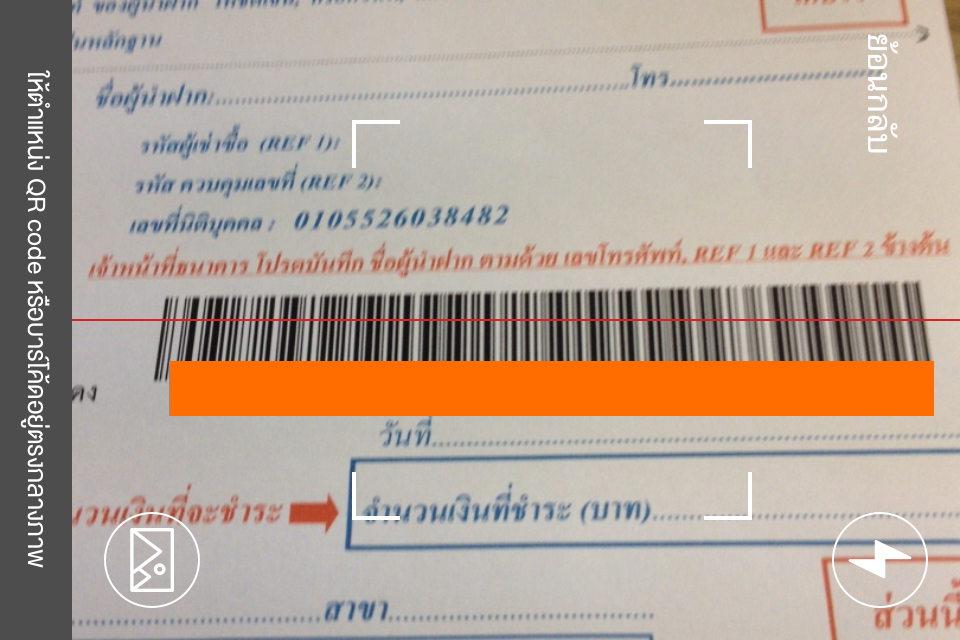 |
Scan the barcode, making sure the red line covers the whole barcode |
3. |
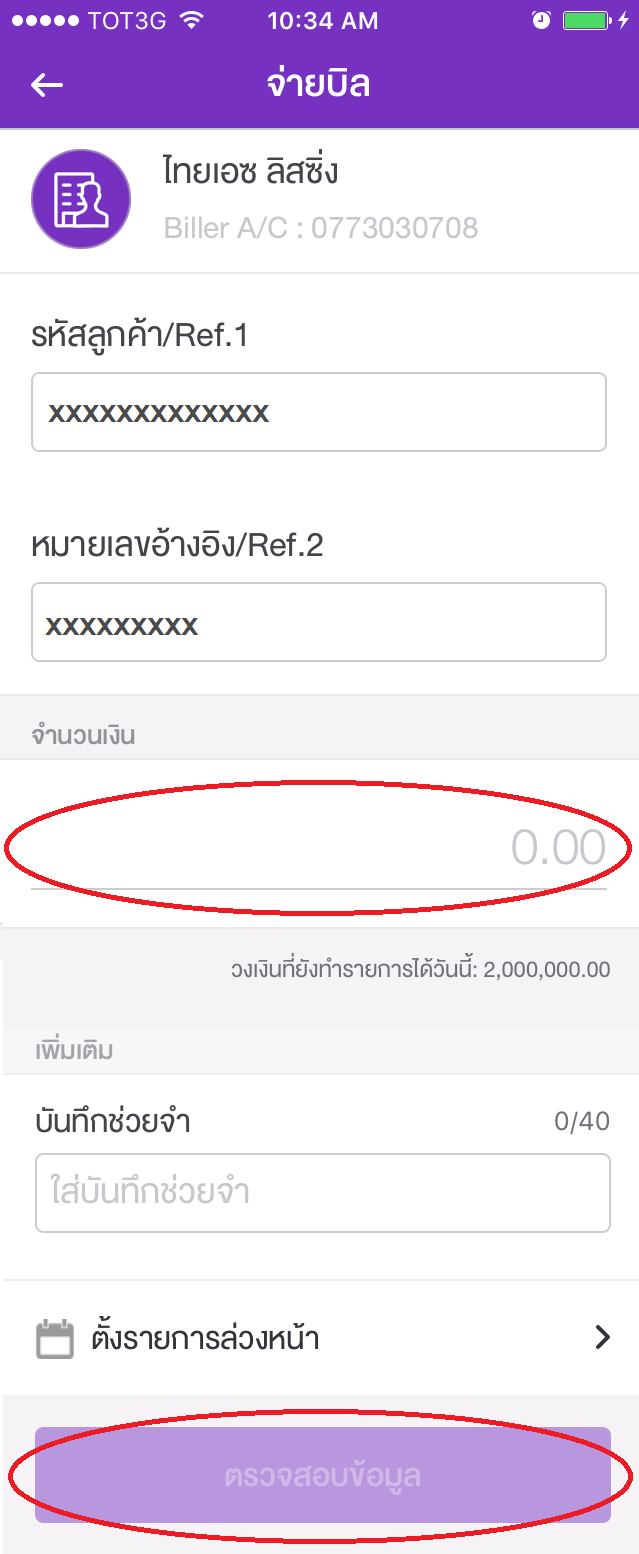 |
Enter the amount to pay and press the "Review" button |
4. |
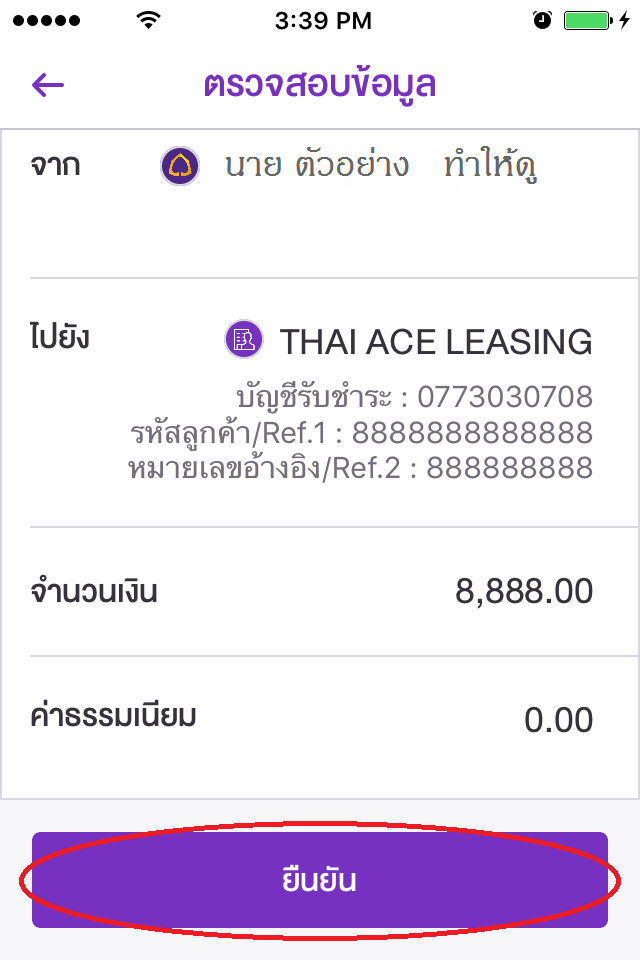 |
Check the details carefully before pressing the "Confirm" button to make the payment |